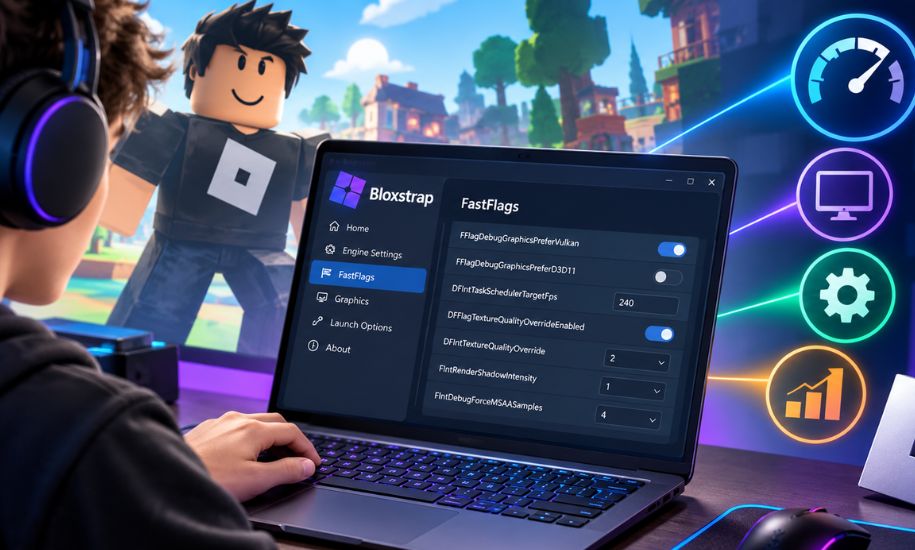
Roblox offers millions of experiences, but not every player enjoys the same level of performance or visual quality. This is where Bloxstrap comes into the picture. As an alternative launcher, it provides extra customization options that the standard Roblox launcher does not offer. One of its most talked-about features is the ability to manage FastFlags, allowing users to adjust supported client settings for graphics, rendering, and interface behaviour. Understanding how these settings work can help players personalize their experience while avoiding outdated or unsupported configurations.
What Are Bloxstrap FastFlags?
Bloxstrap FastFlags are locally applied configuration settings that allow certain Roblox client features to be customized through the Bloxstrap launcher. FastFlags, short for “Feature Flags,” are internal variables originally designed by Roblox developers to test new features, control experiments, and enable or disable functions without releasing an entirely new version of the game client.
Bloxstrap gives users a convenient way to manage supported FastFlags through an easy-to-use interface. Instead of manually editing configuration files, users can adjust settings that influence graphics, rendering behaviour, and other client-side options.
It is important to understand that not every FastFlag can be modified. Roblox now limits which flags can be overridden locally, meaning unsupported entries are simply ignored by the client.
How FastFlags Work
FastFlags operate as configuration values that Roblox reads when the application launches. These values determine how specific features behave before gameplay begins.
When using Bloxstrap, custom values are stored inside the ClientAppSettings.json file. During startup, Roblox checks this file and applies any supported settings.
These configuration values may include:
- Graphics preferences
- Rendering methods
- User interface behaviour
- Performance tuning
- Diagnostic options
- Experimental client features
Since these settings work on the client rather than individual games, their effects can often be noticed across multiple Roblox experiences.
Why Players Use Bloxstrap
One of the biggest advantages of Bloxstrap is convenience. Rather than manually locating configuration files and editing JSON entries, users can manage supported settings through an organised interface.
Common reasons for using the launcher include:
- Improving visual performance
- Testing different rendering APIs
- Reducing graphical overhead
- Customising interface behaviour
- Managing multiple Roblox installations
- Accessing advanced client settings
These features make the launcher appealing to both casual players and experienced users who enjoy fine-tuning their gaming environment.
Popular FastFlag Categories
Rather than relying on one universal performance setting, FastFlags are organised into different categories that affect specific areas of the Roblox client.
Graphics Settings
Graphics-related flags influence how Roblox renders scenes. Depending on system compatibility, users may select different rendering methods that better suit their hardware.
Common adjustments include:
- Graphics API preferences
- Shadow rendering
- Texture quality
- Anti-aliasing
- Lighting options
These changes may improve image quality or reduce GPU workload depending on the chosen configuration.
Rendering Performance
Rendering settings focus on how objects are displayed on screen.
Examples include:
- Level of detail distances
- Render resolution
- Object loading behaviour
- Grass rendering
- Model complexity
Carefully chosen settings can make gameplay feel smoother, particularly on older hardware.
User Interface Options
Some FastFlags affect interface behaviour rather than graphics.
These settings may alter:
- Fullscreen functionality
- Menu appearance
- Window management
- Display scaling
- Accessibility features
While these adjustments do not increase frame rates directly, they can improve overall usability.
Can FastFlags Improve FPS?
Performance improvements depend heavily on individual hardware.
On some systems, adjusting supported graphics settings can produce:
- Higher average frame rates
- Reduced frame drops
- More consistent rendering
- Lower input delay
- Improved stability during demanding scenes
However, there is no universal configuration that guarantees better performance for everyone. Results vary depending on the processor, graphics card, available memory, display resolution, and the specific Roblox experience being played.
Testing changes one at a time remains the safest approach.
Changes Introduced by Roblox
Over time, Roblox has changed how locally modified configuration values are handled.
Older guides often recommend extensive collections of FastFlags copied from community forums. Many of these configurations are now outdated because Roblox introduced an allowlist that only accepts approved local overrides.
As a result:
- Unsupported entries are ignored.
- Some older FPS tweaks no longer function.
- Certain experimental features are unavailable.
- Community-made configuration packs may include obsolete settings.
For this reason, users should always verify that the settings they apply remain compatible with current Roblox versions.
Common Mistakes to Avoid
Many configuration problems stem from simple mistakes rather than software bugs.
Some common issues include:
Using Outdated Flag Lists
Many online collections were created years ago and include settings that Roblox no longer recognises.
Editing Too Many Settings at Once
Changing dozens of values simultaneously makes troubleshooting difficult. If problems appear, it becomes almost impossible to identify the cause.
Invalid JSON Formatting
Manual edits require proper JSON syntax. Even a single missing comma or quotation mark can prevent the configuration file from loading correctly.
Expecting Every Setting to Work
Not every FastFlag shown in old tutorials remains supported. Modern Roblox clients ignore many unsupported entries without displaying an error.
Best Practices for Safe Configuration
A careful approach helps minimise problems while making it easier to evaluate results.
Recommended practices include:
- Create a backup before editing settings.
- Test one change at a time.
- Keep Bloxstrap updated.
- Remove obsolete configuration entries.
- Use only well-documented settings.
- Restart Roblox after making changes.
- Monitor performance after each adjustment.
Following these habits allows users to identify which settings genuinely improve their own system rather than relying on generic recommendations.
Is Using FastFlags Safe?
Using supported client configuration settings is generally different from modifying game files or using cheating software.
Bloxstrap simply provides a method for applying local configuration values that Roblox is capable of reading. It does not inject code into games or modify server behaviour.
Even so, users should avoid downloading unknown configuration files from unofficial sources. Poorly documented settings may cause crashes, graphical glitches, or compatibility issues.
Keeping configurations simple and using trusted information reduces unnecessary risks.
Frequently Asked Questions
Do all FastFlags still work?
No. Roblox now allows only certain approved FastFlags to be overridden locally, while unsupported entries are ignored.
Can FastFlags increase graphics quality?
Some supported settings may improve visual quality, but higher graphical fidelity may also increase hardware requirements.
Will FastFlags work in every Roblox game?
Since these settings affect the Roblox client itself, supported changes generally apply across multiple experiences rather than individual games.
Is Bloxstrap difficult to use?
Most users find Bloxstrap easier than manually editing configuration files because it provides a more organised interface for supported settings.
Should beginners edit every available setting?
No. Starting with a few well-understood options makes it much easier to identify beneficial changes and avoid configuration problems.
Final Thoughts
Bloxstrap provides Roblox players with a practical way to customise supported client settings without manually navigating complex configuration files. While many legacy tweaks have become obsolete due to Roblox’s updated allowlist system, supported FastFlags still offer useful options for refining graphics, interface behaviour, and overall client performance. By making thoughtful adjustments and avoiding outdated configuration lists, users can create a more personalised and stable Roblox experience.
At Insider Newz, we strive to publish practical technology guides that simplify complex topics. Whether you’re exploring advanced Roblox settings or learning about new gaming tools, our goal is to provide accurate, easy-to-understand information that helps readers make informed decisions.